
A workstation can look polished and still be awkward to use. A chair that does not fit, a desk that sits too high or a monitor placed off-centre can turn ordinary computer work into a daily exercise in compensation. People lean, reach, shrug and move closer to the screen because the furniture does not meet them where they are.
A practical workstation ergonomics standard starts with one principle: adjust the equipment to the person and the task. There is no single posture or furniture setting that suits every employee. The aim is a supported, neutral working position that can be changed throughout the day.
Quick answer: Set the chair so the feet are supported and the lower back is comfortably supported. Place the keyboard around elbow height, keep shoulders relaxed and wrists straight, and position the monitor directly ahead with its top at or just below eye level. Then check the fit with the person who will use it.
What is a workstation ergonomics standard?
A workstation ergonomics standard is a repeatable way to assess and adjust the chair, desk, monitor and input devices so employees can work with less awkward reaching, twisting and sustained strain. It is a practical workplace guideline, not a medical diagnosis or a promise that discomfort will disappear.
For an office team, the standard should cover three things: the fit of each workstation, the ability to adjust it for different users, and a simple process for reviewing it when tasks or people change. The US Occupational Safety and Health Administration (OSHA) makes the same important point: no single computer workstation arrangement fits everyone. Its guidance focuses on basic design goals and a user-specific fit.
The workstation setup standard at a glance
|
Component |
Starting point |
What to check |
|
Chair |
Feet supported; back supported; thighs comfortably supported |
Seat height and depth, lumbar support, armrests and easy adjustment |
|
Desk and keyboard |
Keyboard near elbow height; shoulders relaxed |
Clearance for thighs, feet and knees; wrists straight; mouse close |
|
Monitor |
Directly ahead; top at or just below eye level |
Comfortable reading distance, screen tilt, glare and text size |
|
Whole workstation |
Equipment adjusted to the individual |
Can the user change position and reach common items without twisting? |
Treat these as starting points. Body proportions, vision, footwear, desk design and the work itself all affect the final arrangement. A good setup is one the employee can use comfortably and adjust without needing a facilities ticket every time.
1. Choose and adjust the office chair
The chair is the foundation because it sets the height and support for the rest of the workstation. A chair should fit the person using it, support the back and thighs, and allow movement between working positions. A premium finish or a long list of controls is not proof of a good fit.
Set seat height and foot support
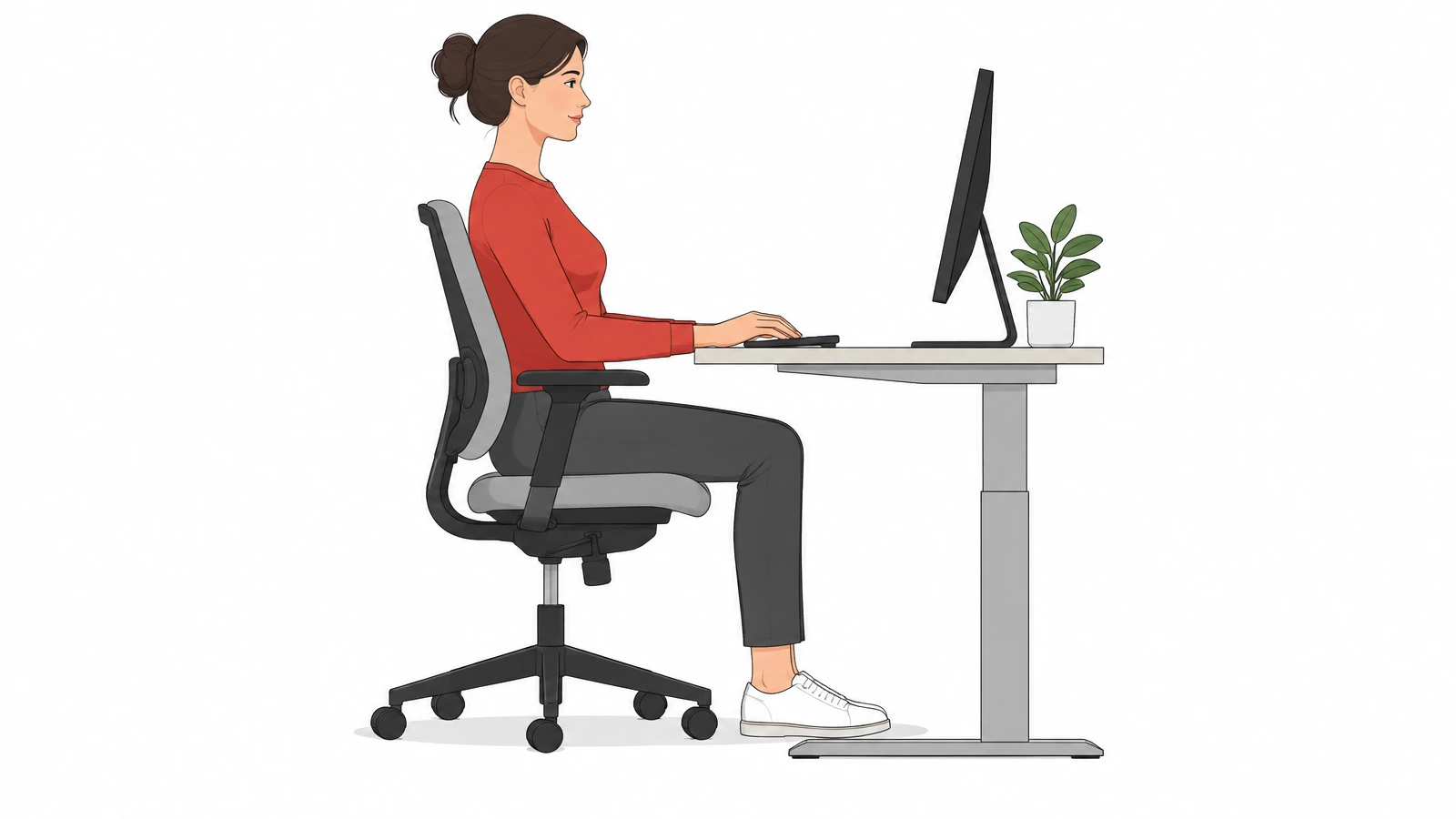
Adjust the seat so both feet rest flat on the floor or on a stable footrest. The thighs should be supported without pressure from the front edge of the seat. If the desk requires the chair to be raised, add a footrest rather than leaving the feet unsupported.
When the employee sits back, the seat should support the thighs while leaving a small gap behind the knees. The UK Health and Safety Executive (HSE) gives a practical guide of roughly 2 to 3 cm between the seat edge and the back of the knee. Use this as a check, not a rigid measurement for every body.
Set the backrest and lumbar support
The backrest should meet the user's back and support the lower-back area. Adjust its height or position where the chair allows it. The user should be able to sit back without sliding forward or holding the torso upright through constant effort.
A chair with a recline or tilt function can support changes in posture during different tasks. Herman Miller's research on sitting describes several common working positions, including forward, slightly reclined and more deeply reclined postures. The useful lesson for office planning is that a chair should support movement and task changes, rather than forcing one fixed pose.
Set armrests and seat depth
If armrests are used, set them so the shoulders remain relaxed and the elbows stay close to the body. They should not prevent the chair from moving close enough to the desk. Adjust seat depth so the back can stay in contact with the backrest while the seat does not press into the backs of the knees.
Before specifying chairs for a whole floor, test a sample with people of different heights and builds. Include employees who are shorter or taller than the apparent average. A chair that fits one person well may leave another person reaching for the floor or losing back support.
2. Set the desk and keyboard to the user
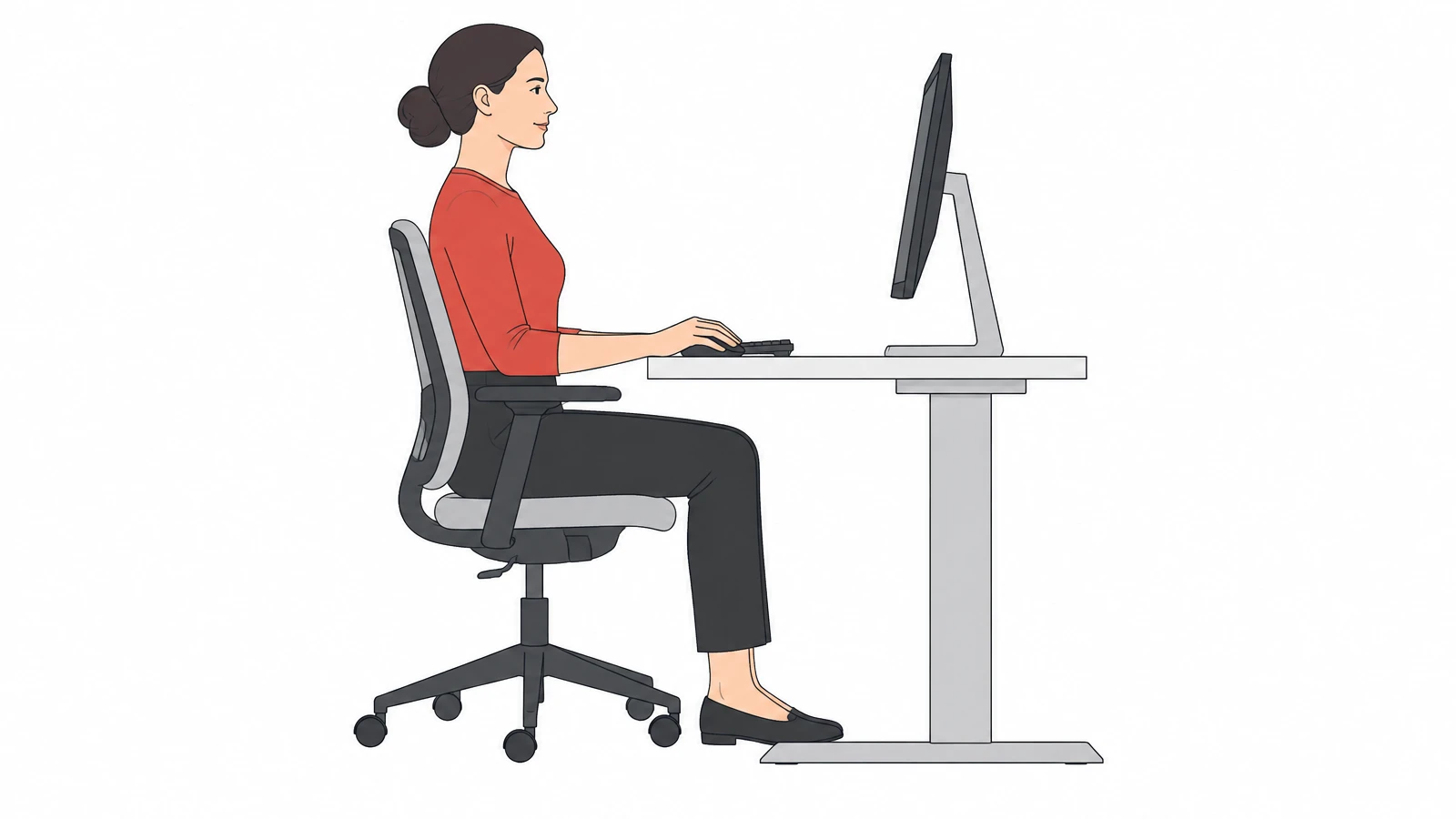
The desk should let the employee bring the keyboard and mouse close, keep the shoulders relaxed and maintain straight wrists. In a seated setup, the keyboard is generally around elbow height or slightly below it. The forearms should be roughly parallel to the floor, with elbows close to the torso.
A fixed-height desk can make this difficult because people have different seated elbow heights. Adjust the chair first, then check the desk. If raising the chair is needed to reach the desk, provide a footrest. If the keyboard remains too high or too low, consider an adjustable keyboard tray or a height-adjustable work surface.
Check legroom and reach
There should be enough clearance beneath the desk for thighs, knees and feet. Avoid drawers, pedestals or crossbars that force the user to sit too far away. Keep the mouse beside the keyboard and frequently used items within easy reach. Repeatedly reaching across the desk is a layout problem, not a test of flexibility.
Look at the front edge of the work surface too. A sharp edge can press against the forearms or wrists. A rounded or padded edge, together with a suitable keyboard position, can make the work surface easier to use.
3. Position the monitor at a comfortable height and distance
Place the main monitor directly in front of the employee so the head and torso face forward. As a starting point, set the top of the screen at or just below eye level. The screen should be far enough away for the user to read without leaning forward, but close enough that text remains clear.
OSHA gives a general viewing-distance range of 20 to 40 inches (about 50 to 100 cm), while its evaluation checklist also refers to roughly arm's length. HSE likewise uses about an arm's length as a practical starting point. These are guides, not a fixed rule: screen size, eyesight and text size matter. Increase text size before asking someone to lean closer.
Reduce glare and awkward viewing
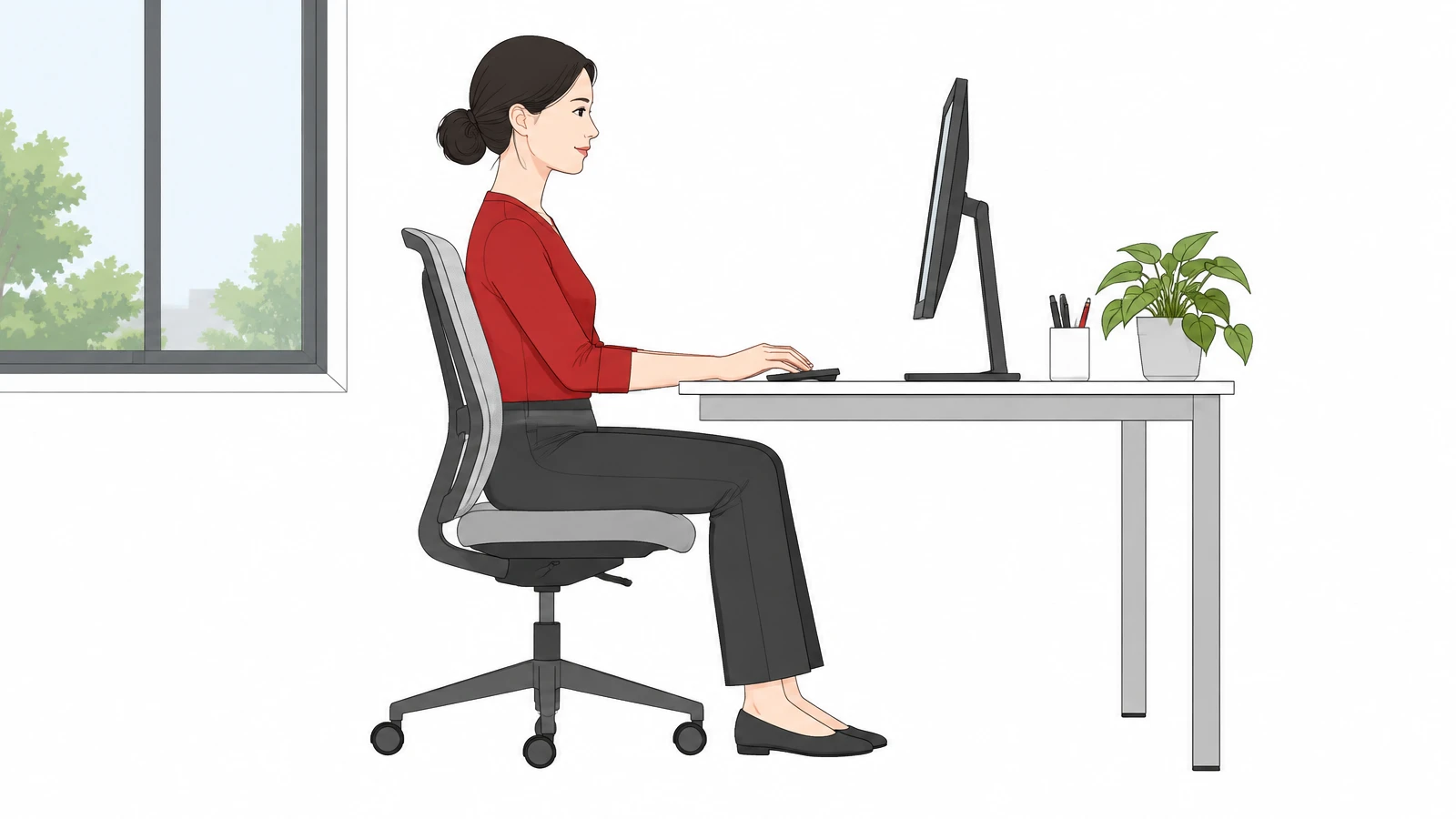
Position the screen to limit reflections from windows and overhead lights. OSHA recommends placing the monitor perpendicular to windows where possible. Adjust screen tilt and brightness so the employee can read without leaning, squinting or changing head position to avoid glare.
For two monitors, place the primary screen directly ahead if it is used most. Put the secondary screen beside it and angle it towards the user. If both screens are used equally, arrange them together in a shallow curve to reduce repeated head and torso turning.
4. Make laptop workstations fit for longer sessions
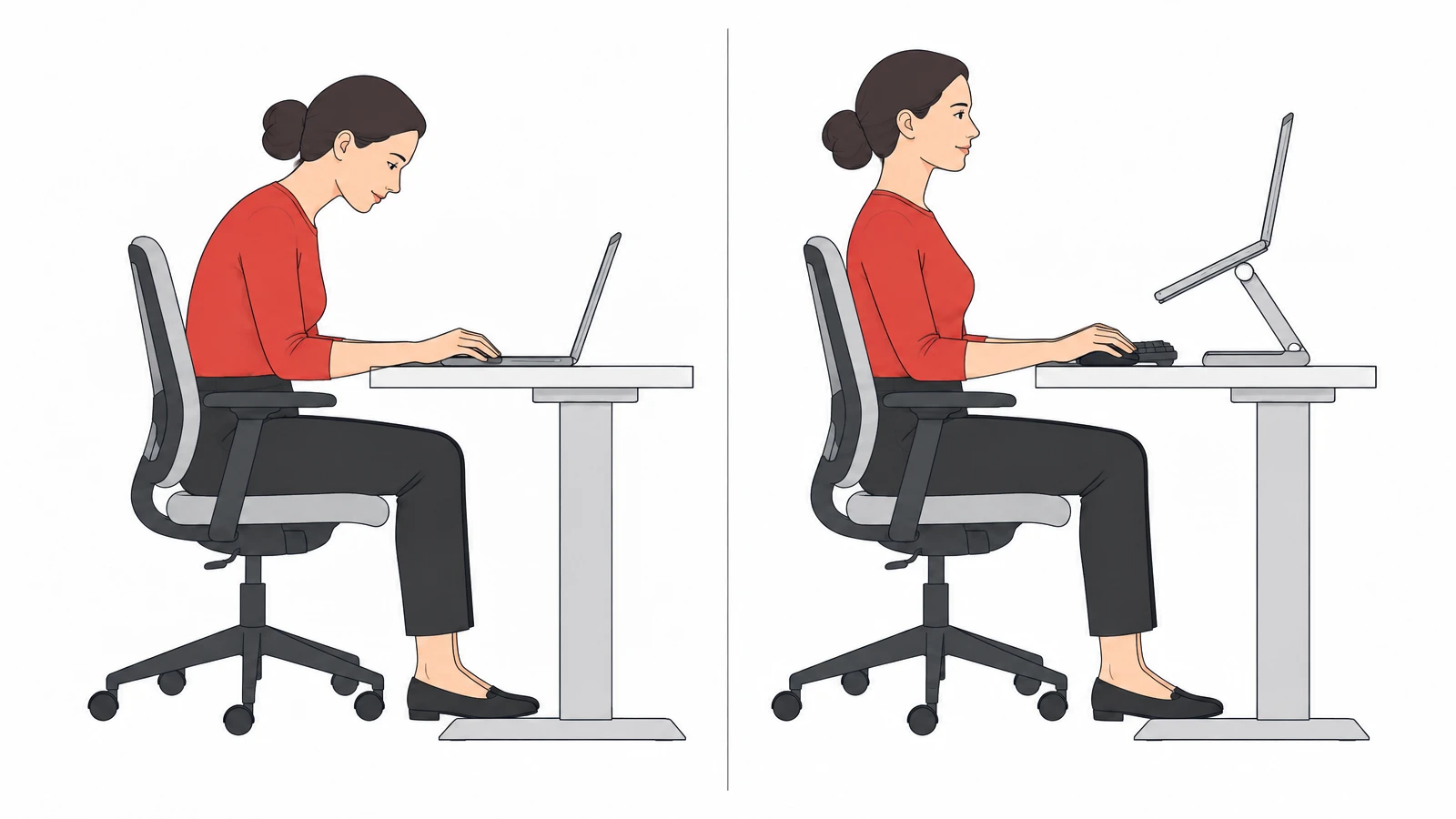
A laptop combines the screen and keyboard in one unit. Raising the screen to a comfortable viewing height also raises the keyboard, while placing the keyboard at a comfortable typing height usually leaves the screen too low. For regular or prolonged laptop work, separate the two functions.
Use a laptop stand or monitor riser to raise the display, then connect a separate keyboard and mouse. Adjust the screen as you would a desktop monitor. Keep the external keyboard near elbow height and the mouse close beside it. For occasional short laptop tasks, a full accessory setup may not be necessary; for a primary workstation, it is a sensible specification.
5. Build movement and adjustment into the workday
Even a well-fitted workstation should not lock someone into one position for hours. Encourage employees to change posture, stand for some tasks, walk to a colleague or take short visual breaks. Where the work allows it, alternate computer tasks with calls, meetings, reading or other activities.
Herman Miller's research on chair design also emphasises supporting different working postures and natural movement. This is a useful design consideration when comparing chairs: look at how the chair supports the user through movement, not only how it feels during a brief showroom test.
A sit-stand desk can create another option, but it does not automatically make a workstation ergonomic. The standing height still needs to place the keyboard around elbow level, keep shoulders relaxed and allow the screen to sit at a comfortable viewing height. Alternate between sitting and standing rather than replacing one prolonged static position with another.
A practical workstation ergonomics checklist for HR and facilities teams
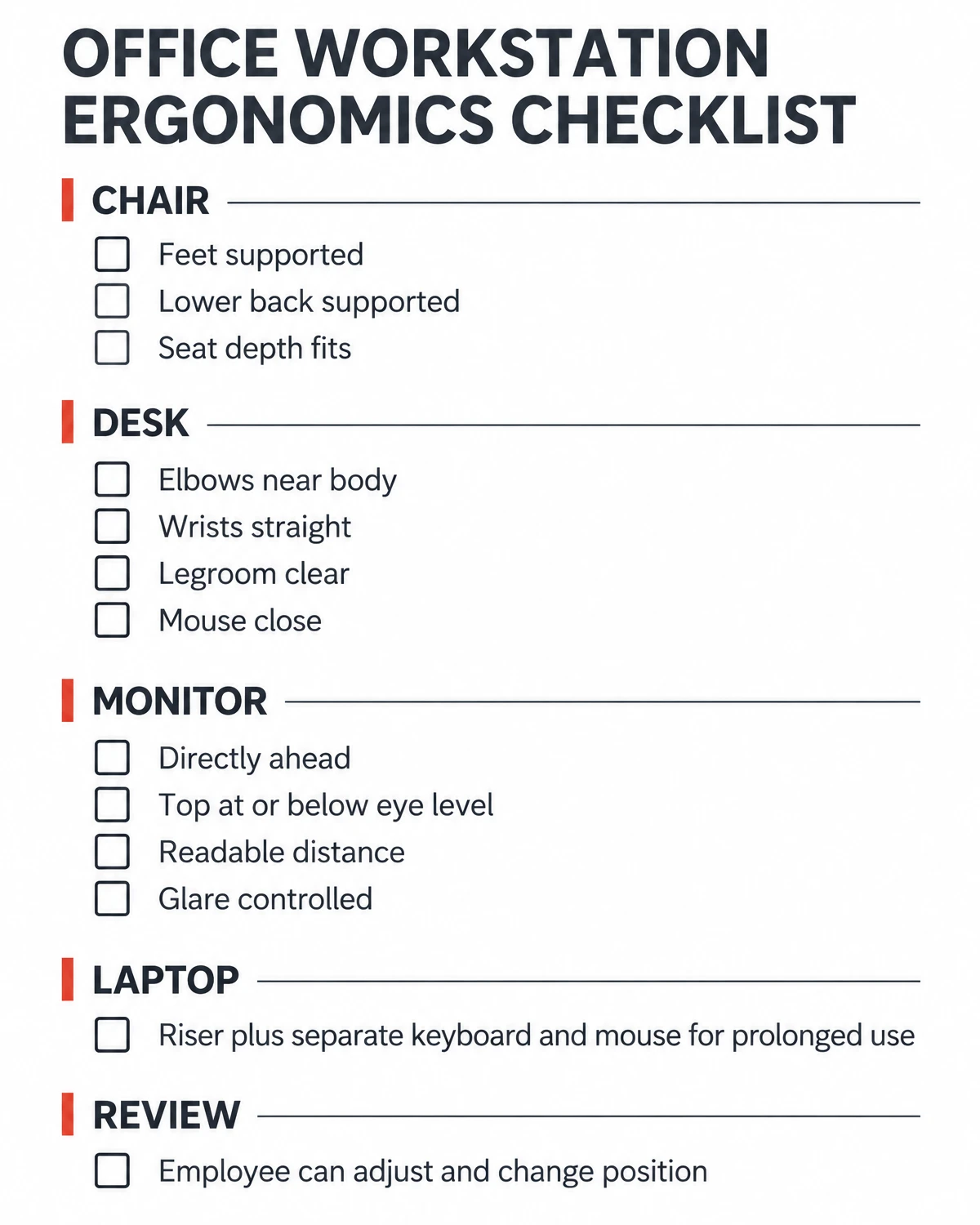
Use this checklist when setting up a new workstation, reviewing an existing desk or preparing a furniture specification. Ask the employee to sit and work naturally while you check each point.
- Chair height allows both feet to rest flat on the floor or on a stable footrest.
- Seat depth supports the thighs without pressing into the backs of the knees.
- Backrest supports the lower back when the employee sits back.
- Armrests, if used, allow relaxed shoulders and do not block the chair from moving under the desk.
- Desk height lets the employee use the keyboard with elbows near the body and wrists straight.
- Thighs, knees and feet have enough clearance beneath the desk.
- Mouse sits close to the keyboard and does not require repeated reaching.
- Monitor is directly ahead, with its top at or just below eye level.
- Screen distance allows clear reading without leaning forward.
- Lighting and screen position limit reflections and glare.
- Laptop users who work for extended periods have a raised screen and separate keyboard and mouse.
- The employee can adjust the workstation and change position during the day.
How to assess workstations across an entire office
For a single desk, an informal fit check may be enough. For a larger office, use a consistent assessment process so the same issues do not reappear on every floor.
- Map the work: identify desk-based roles, shared workstations, laptop users, call-heavy roles and employees who use multiple screens.
- Review a representative sample: include different heights, tasks and workstation types rather than checking only one desk.
- Record the adjustment: note chair range, desk type, monitor support, footrests, keyboard trays and any access constraints.
- Separate product issues from layout issues: a new chair will not solve a desk that is too high or a monitor that sits off-centre.
- Prioritise fixes: address unsupported feet, poor back support, repeated reaching, screen glare and restricted legroom.
- Recheck after changes: ask the employee to use the adjusted setup during normal work and confirm that the controls are easy to use.
For procurement, the assessment should inform the specification. It can reveal where adjustable chairs are essential, where monitor arms will help, whether fixed desks need accessories, and where the floor plan itself is creating poor reach or screen angles.
Common workstation ergonomics mistakes
|
Mistake |
Why it creates a poor fit |
Practical correction |
|
Buying one chair model for everyone |
Seat height, depth and support needs vary |
Test adjustability with a representative range of users |
|
Raising the chair without a footrest |
Feet may no longer be supported |
Add a stable footrest or change the desk/keyboard height |
|
Putting the monitor on a fixed high shelf |
The screen may sit above the user's eye line |
Use a height-adjustable stand or monitor arm |
|
Using a laptop as a full-time desktop |
Screen and keyboard cannot be adjusted independently |
Add a stand, separate keyboard and mouse |
|
Focusing only on furniture |
Layout, lighting and equipment placement also affect fit |
Assess the complete workstation as one system |
How often should a workstation be reviewed?
Review a workstation when an employee changes role, equipment is replaced, the desk layout changes or a shared workstation is assigned to a new user. A periodic check is also useful because monitor arms, chair controls and accessories can drift from their original settings.
For shared desks, make adjustments simple to find and easy to reset. A short setup card beside the workstation can show how to change seat height, back support, monitor position and keyboard placement. The best instructions are the ones employees can follow without searching for a manual.
Frequently asked questions
What is the ideal height for an office chair?
There is no single chair height for every person. Set it so the feet are supported, the thighs are comfortable and the user can reach the keyboard with relaxed shoulders and elbows near the body. If the desk requires a higher seat, use a footrest.
Should the top of a monitor be at eye level?
As a practical starting point, place the top of the monitor at or just below eye level. Keep the screen directly ahead and adjust its distance so the user can read without leaning forward. Some users may need a lower position because of their lenses or visual needs.
Is a height-adjustable desk necessary for every employee?
No. A height-adjustable desk can help when one fixed surface cannot be made to fit the user and task, but a well-planned fixed desk can also work. The key is the relationship between the chair, keyboard, screen and the person using them.
Can an ergonomic chair fix poor posture?
A chair can provide support and allow adjustment, but it cannot correct every issue in the workstation. Desk height, monitor placement, work habits and individual fit matter too. Review the complete setup and seek qualified occupational health advice where an employee reports persistent symptoms.
What should a company prioritise when buying office furniture?
Start with the tasks and people who will use the space. Assess adjustability, fit, durability, ease of maintenance and how the furniture works with the floor plan and technology. Test representative products before standardising a specification.
Plan workstations around the people who use them
A useful workstation standard gives HR and facilities teams a shared way to assess chair fit, desk height, monitor position and day-to-day adjustment. It also makes procurement more precise: the team can explain what a product needs to do before comparing options.
Office Design works with organisations in Kazakhstan on office planning, furniture selection and workplace fit-out. If you are planning a new office or reviewing an existing one, speak with the team about your workspace, employee needs and furniture specification.